
You can not select more than 25 topics
Topics must start with a letter or number, can include dashes ('-') and can be up to 35 characters long.
1.9 KiB
1.9 KiB
Implement ray tracing with Shader Graph
To use ray-traced effects with Shader Graph, use the Raytracing Quality Keyword node. This node exchanges accuracy for speed, except for Path-Traced effects which aren't affected and use the default path.
Add the Raytracing Quality Keyword node
The Raytracing Quality Keyword node is a Built-in Keyword node .
To add the Raytracing Quality Keyword node to the graph:
- In the Blackboard, click plus (+).
- Go to Keyword > Raytracing Quality. This creates the keyword and makes it visible on the Blackboard.
Use the Raytracing Quality keyword node
To use this keyword in the graph, you need to create a Keyword Node. To do this, drag the Raytracing Quality Keyword node from the Blackboard to the graph or open the Create Node Menu and search for Raytracing Quality .
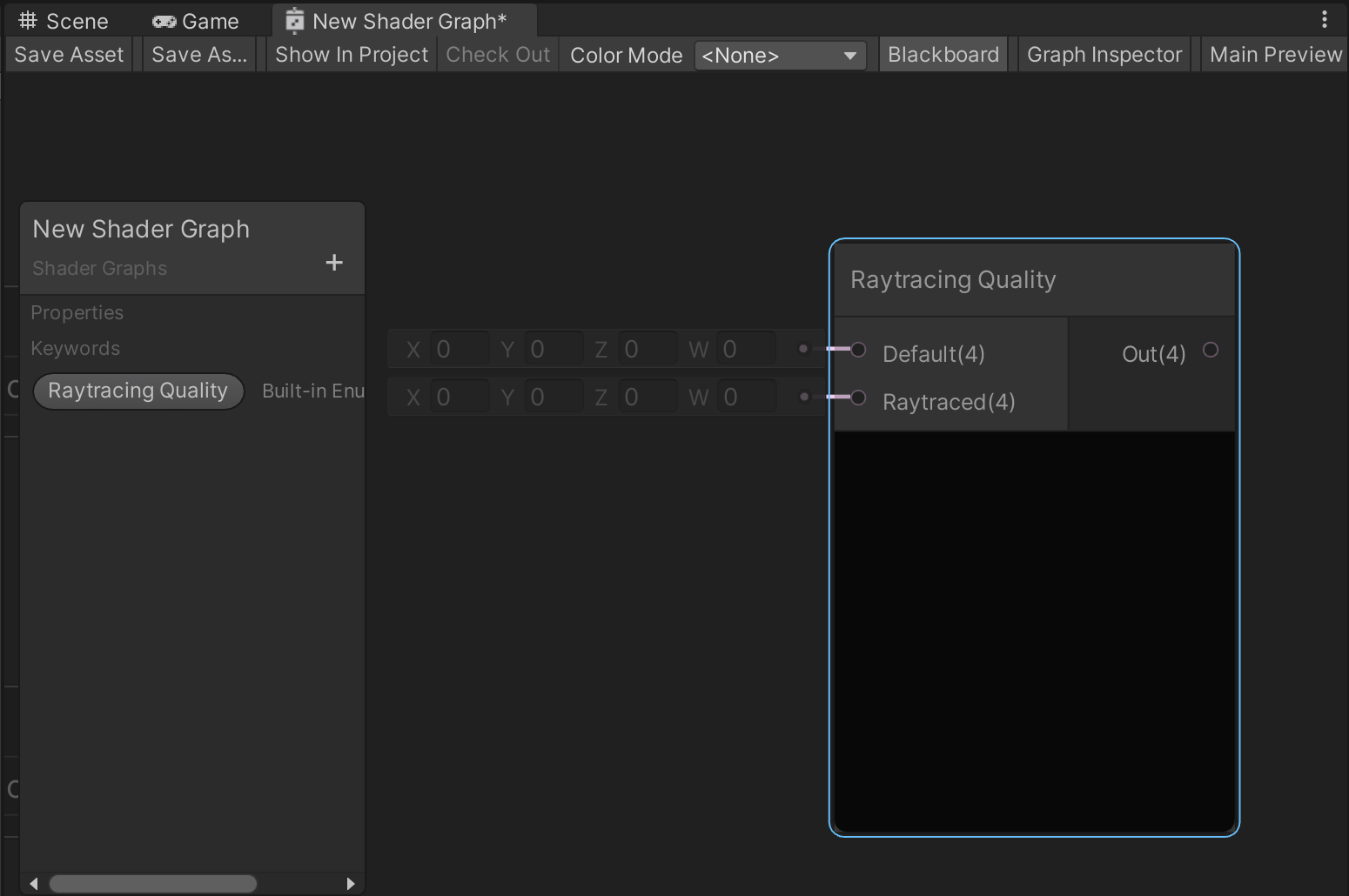
Available Ports
| Name | Direction | Type | Description |
|---|---|---|---|
| default | Input | Vector4 | The value to use for the normal Shader Graph. This is the default path Unity uses to render this Shader Graph. |
| raytraced | Input | Vector4 | The value to use for the fast Shader Graph to use with the ray-traced effects excepth the path traced one. |
| output | Output | Vector4 | Outputs is the value which will be selected based on the context this shader graph is used. |